A full season, one plan.
Build a multi-week plan once, apply it to your team with the anchor that fits your race, and manage it all the way to race day — always protecting the work your athletes have already done.
Three moves: build, apply, manage
A plan isn't a one-time drop onto the calendar. It's a living thing you adjust as the season turns. Smagpie handles the whole arc.
Build
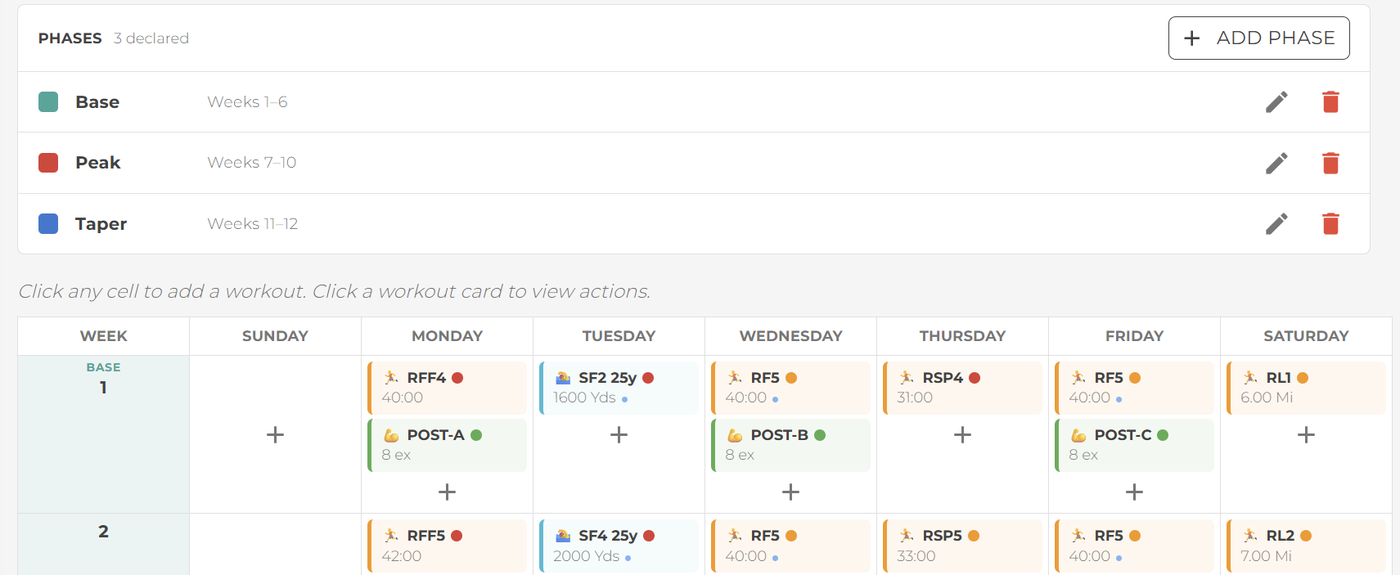
Lay out a multi-week plan on a week-by-day grid. Stack multiple workouts on a day, mark the race, and organize the block into Base, Build, Peak, and Taper phases.
Apply
Drop the plan onto your team's calendar and anchor it to the date that matters — the race, a start day, or an end day. Preview exactly what will land, then commit it all at once.
Manage
Run the plan all season from one panel. Skip a week when life gets in the way, restore it later, or pull the plan entirely — always protecting the work athletes have already done.
Author a whole block on one grid
The plan editor is a week-by-day matrix. Search your workout library and drop sessions into any cell, stack more than one on a day, and mark the race. Every change saves the instant you make it — no Save-button roulette.
Organize the block into phases — Base, Build, Peak, Taper — and they render as colored bands across the weeks so the shape of your season is visible at a glance. Attach a coaching note to any workout and it travels all the way to the athlete.
Plan editor — phase bands & stacked days
Screenshot coming
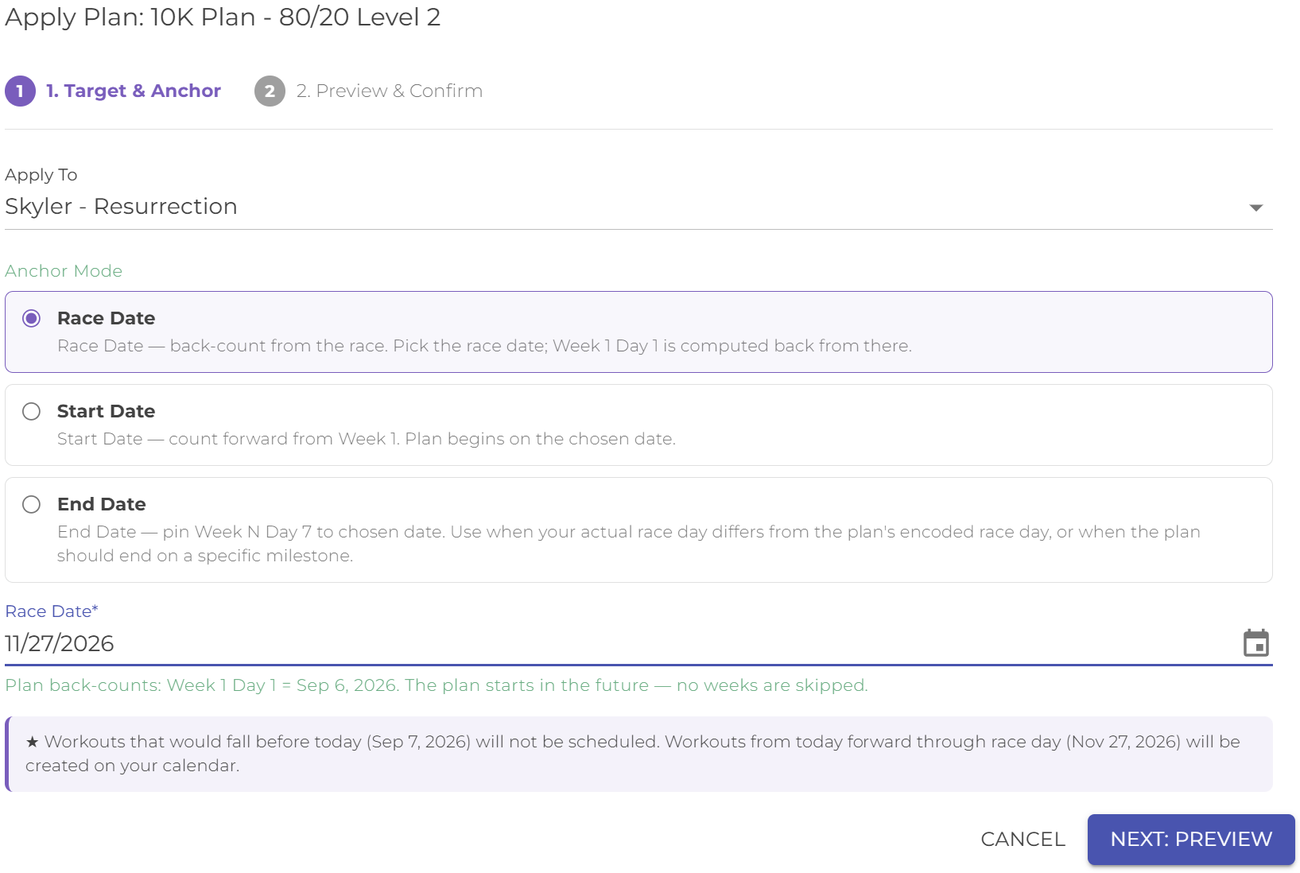
Anchor it to the date that matters
Apply a plan to the whole team or a single group. Pick an anchor, preview the exact matrix that will land — past weeks are skipped automatically, nothing gets back-dated — then commit. It's all-or-nothing: every workout lands or none does.
Race Date
Anchor the plan's last week to race day. Smagpie back-counts every week so the plan's day-of-week rhythm lines up with race week.
Start Date
Anchor Week 1, Day 1 to the day you choose and let the block run forward. The classic way to start a plan.
End Date
Anchor the final day when your real race falls a day off the plan's coded race day — long runs stay on the day they were written for.
Skip a week. Your taper doesn't move.
Most tools make you choose: shove the whole plan forward and blow up your taper, or hand-edit a dozen sessions. Smagpie does neither.
Skip a week and it's simply gone — no other week shifts. The rest of the block stays anchored to race day, so the taper you built stays exactly where it belongs. Restore the week later and everything comes right back.
One panel to run the plan all season
Open any applied plan to see every week laid out — dates, workout counts, and where today falls. From here you steer it.
Skip a week
Exams, a holiday, a week of weather — skip a single week and the rest of the plan stays exactly where it is. Not-yet-done workouts come off the calendar; anything already completed is kept.
Restore a week
Changed your mind? Put a skipped week back exactly as it was, in one step. If athletes sync a watch, the workouts reappear on their devices.
Remove the plan
Pull a plan off the calendar entirely while preserving every workout your athletes already completed. Removed workouts drop off their watches automatically.
Manage panel — week-by-week, skip & restore
Screenshot coming
Athletes see the plan, not just the workout
When a plan is applied, athletes get a heads-up and every plan workout carries its context right through to their phone — and to the Garmin, Coros, or Intervals.icu account they already sync.
A marker on every plan workout
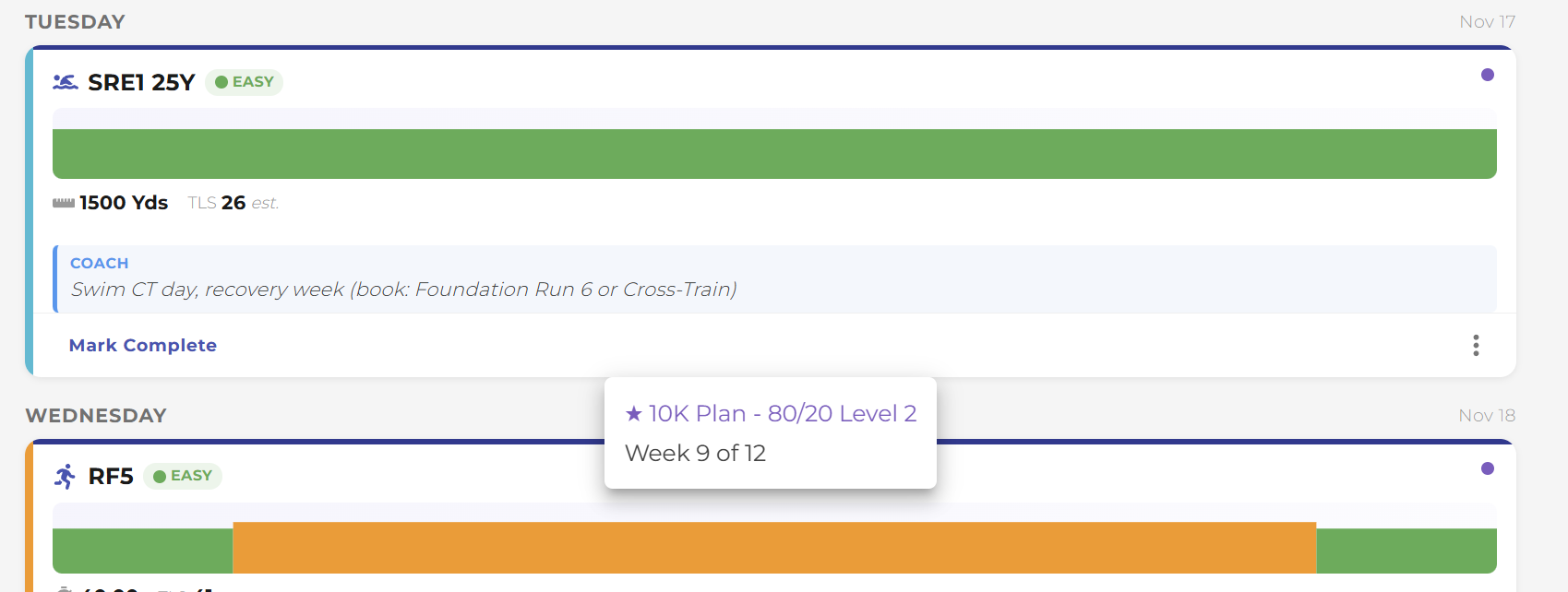
A small purple dot flags every workout that came from a plan — on the coach's schedule and the athlete's day view — so the source of each session is never a mystery.
Coaching notes ride along
Notes you attach to a plan's workouts flow through to the athlete's card as a clear COACH callout, so context arrives with the work.
Race-day countdown & phase
Athletes tap the marker to see which week they're on, the current phase, and how many days until race day — motivation built into the workout.
Coach Hub — every active plan at a glance
Screenshot coming · /coach/hub
Every running plan, right on your Coach Hub
Your Coach Hub gains an Active Training Plans section: a quick read of every plan you have running — which week each is on, the current phase, and the countdown to race day — newest first.
Tap any card to jump straight into its manage panel. When you have no active plans, the section simply isn't there — the Hub stays uncluttered.
Build your first plan.
Lay out a season on the grid, anchor it to your race, and put it on your team's calendar — then steer it, week by week, all the way to the start line.